
You don't need to touch a terminal to run AI on your own computer anymore. Here are five tools built for people who just want to click install, pick a model, and start chatting — private, offline, and free.
5 Best Local LLM Tools for Non-Technical Users in 2026
Running AI on your own computer used to mean Python environments, command-line flags, and a fair amount of patience. That's no longer the barrier it used to be. In 2026, several tools let you install an app, click a model name, and start chatting — with everything running privately on your own machine, no subscription and no data leaving your device.
This list skips anything that requires a terminal, Docker, or config files. These five are built for people who just want AI that works.
1. LM Studio — The Most Polished Option
LM Studio is the standout pick if you want the experience to feel like a real app rather than a developer tool. It's a desktop application with a visual model browser, so you can see file sizes, quantization levels, and download progress before committing to anything — no guessing what a "GGUF" or "Q4" means before you start.
Why it's great for non-technical users:
One installer, no terminal required, works on Windows, macOS, and Linux
Browse and compare models visually before downloading, right inside the app
Sliders and menus handle settings like temperature and context length, instead of command-line flags
Feels like a private, offline ChatGPT once a model is loaded
The one thing to know: it does bundle a local server feature for developers, but you can completely ignore that and just use the chat window if that's all you want.
2. GPT4All — The Lightest, Simplest Entry Point
GPT4All, from Nomic AI, is built specifically to be the easiest possible way to try local AI, especially on older or modest hardware. The installer is small, it runs entirely on CPU if you don't have a dedicated graphics card, and it comes with a genuinely useful extra: LocalDocs, a built-in feature that lets you point it at a folder of your own files and ask questions about them, entirely offline.
Why it's great for non-technical users:
One of the smallest, simplest installers in this category
Runs comfortably on CPU-only machines — no GPU needed
LocalDocs lets you chat with your own PDFs, Word docs, and text files without any setup
No configuration screens to get lost in — install, pick a model, start typing
If your computer is a few years old or you don't have a dedicated GPU, this is the one to try first.
3. Jan — The Full "Offline Assistant" Experience
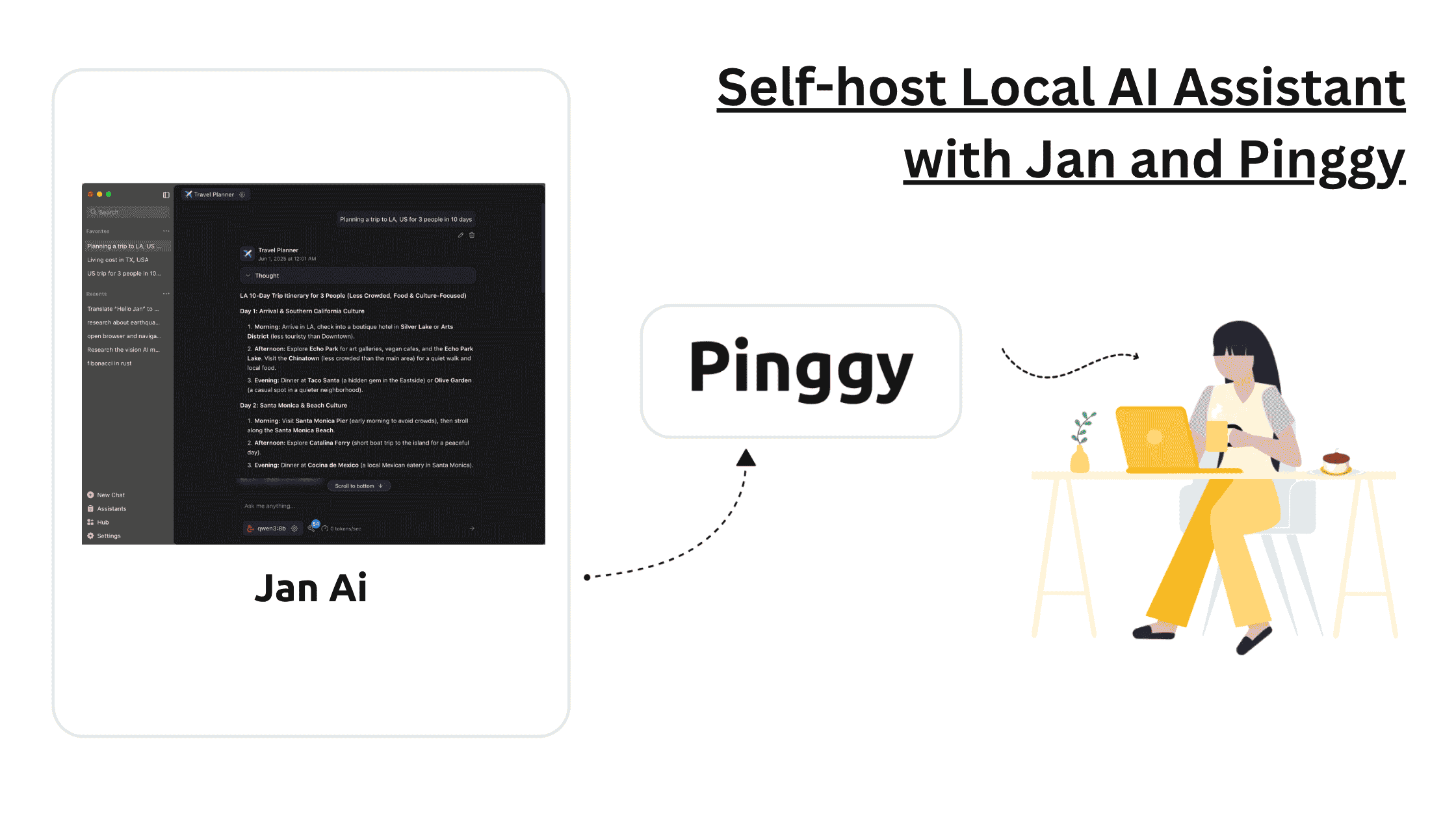
Jan is built to feel less like a "model runner" and more like a complete offline assistant, closer in spirit to ChatGPT than to a technical tool. It wraps local models in a clean, familiar chat interface and manages the model-switching and setup work behind the scenes.
Why it's great for non-technical users:
Clean, ChatGPT-style interface that doesn't expose technical settings unless you go looking for them
Fully usable offline, with everything running on your machine by default
Supports switching between multiple downloaded models from one simple menu
Optional hybrid mode if you ever want to add a cloud API alongside your local models — entirely optional, never required
Jan is a good pick if you specifically want something that feels like a personal assistant rather than a piece of AI infrastructure.
4. AnythingLLM — Best for Chatting With Your Own Documents
If your main goal isn't general chat but getting answers out of your own files — reports, notes, PDFs, contracts — AnythingLLM is built around exactly that. It pairs a simple interface with a genuinely capable document-question-answering system, sitting on top of a local model so nothing you upload leaves your machine.
Why it's great for non-technical users:
Designed around a workspace concept: drop in your documents, then just ask questions about them
Works with local models, so your files and questions stay private
Handles the retrieval and indexing work automatically — no need to understand how it works under the hood
Useful for individuals and small teams who want a private research or knowledge assistant, not just a chatbot
This is the pick if "I want to ask questions about my own files" is closer to what you actually need than "I want a general chatbot."

5. Open WebUI — The Best Option If You Want a Browser-Based Interface
Open WebUI is a bit more setup-intensive than the other four — it typically runs through Docker and needs a backend like Ollama running underneath it — but it earns its spot here because once it's running, the day-to-day experience is genuinely simple: a polished, browser-based chat interface with document upload, multiple user profiles, and a familiar layout that needs no technical knowledge to actually use.
Why it's worth the slightly higher setup effort:
Once installed, it's entirely point-and-click — no different from using a mainstream chat website
Good option for households or small teams who want to share one local AI setup across multiple people
Supports document upload and search directly in the chat window
Accessible from any browser on your home network, not just the one machine it's installed on
If you have a slightly more technical friend or family member who can help with the one-time setup, this is worth it for the shared, browser-based experience it gives everyone afterward.
Quick Decision Guide
Text-style summary:
Want the most polished, app-like experience → LM Studio
Have an older computer or no dedicated GPU → GPT4All
Want something that feels like a personal offline assistant → Jan
Mainly want to ask questions about your own documents → AnythingLLM
Want a shared, browser-based setup for the whole household → Open WebUI (with a bit of help setting it up)
A Few Things Worth Knowing Before You Start
All five of these run entirely offline once a model is downloaded — no internet connection needed to actually chat
Every tool listed here works with free, open-weight models — there's no subscription or per-message fee
Storage matters more than most people expect: even a "small" model can be several gigabytes, so make sure you have space free before downloading
If your computer struggles to keep up, it's almost always the model size, not the tool — try a smaller model before assuming your hardware can't handle local AI at all
The Bottom Line
You genuinely don't need to know what a GPU is, what quantization means, or how to use a terminal to run a capable AI model on your own computer in 2026. LM Studio and GPT4All get you chatting in minutes with the least friction. Jan gives you the fullest "personal assistant" feel. AnythingLLM is the one to reach for if documents, not conversation, are the real goal. And Open WebUI, once someone helps you get it running, turns your local AI into something the whole household can use from a browser. Pick based on what you actually want to do with it, not which one sounds the most technical.